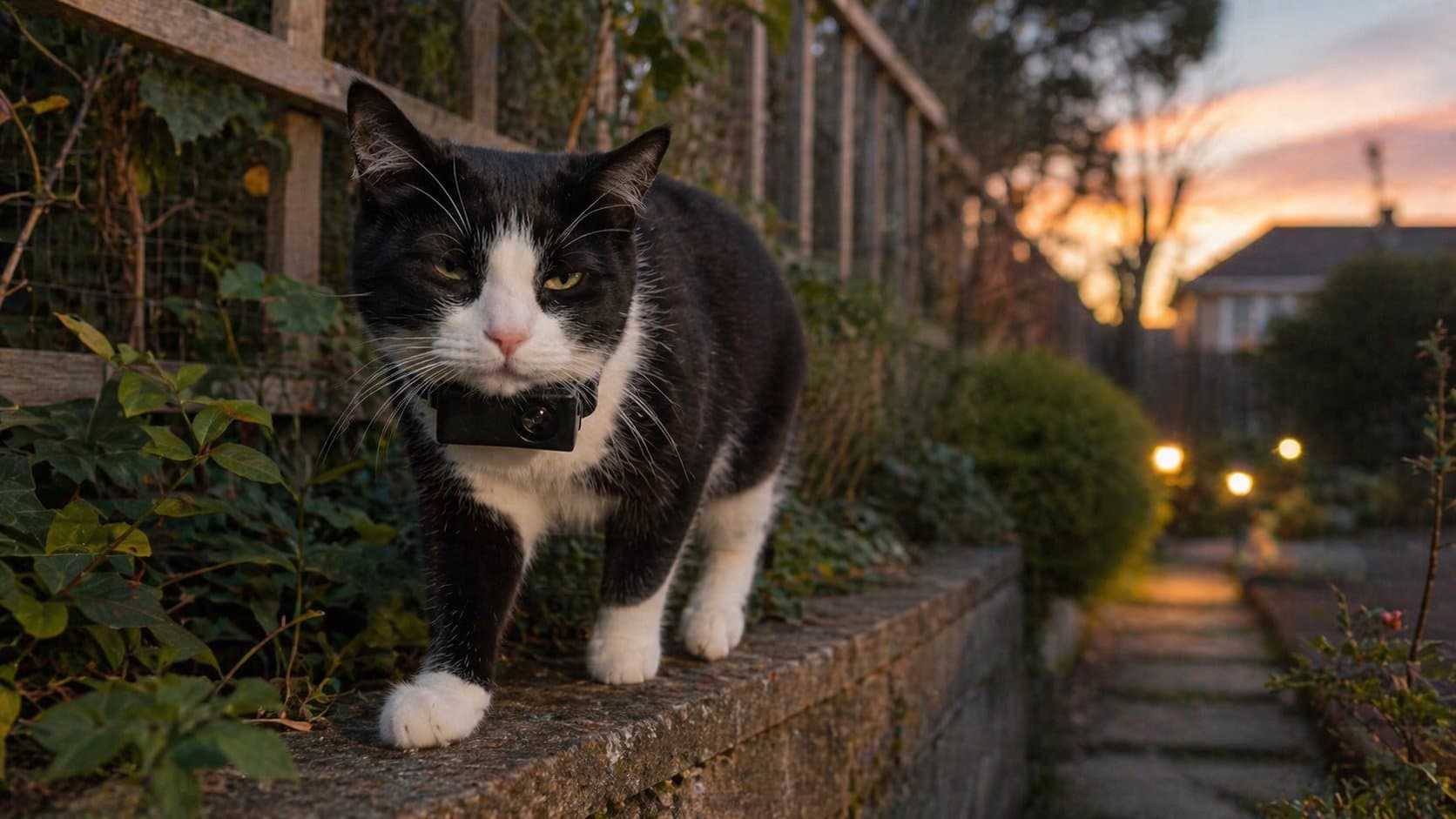
iPhones do not play AVI files natively. To watch cat collar camera footage on an iPhone, you have three working options: install VLC (free), use a third-party player like Infuse, or convert AVI to MP4 first. For most cat camera owners, VLC is the fastest path because it plays AVI directly from a USB-C SD card reader without conversion.
Many affordable cat collar cameras record in AVI format because it uses less battery and storage than MP4. That's great for the camera — less great for the iPhone in your pocket, which has never supported AVI without a third-party app. Here's what actually works in April 2026, tested on iPhone 14 and iPhone 15.
Why Your iPhone Won't Play the Cat Camera File
When you plug the SD card from a collar camera into your iPhone with a USB-C or Lightning adapter, one of three things happens:
- The file shows up in Photos but won't open (most common)
- The file doesn't show up at all (AVI not recognized by Photos)
- A thumbnail appears but tapping it produces an error like "This video cannot be played."
This happens because Apple Photos only reliably supports MOV, MP4 (H.264/HEVC), and M4V. AVI is a container format from the Windows 98 era and Apple has never added native decoder support for it. No iOS update will change this — you need a third-party app.
Method 1: VLC (Free, Works for 90% of Users)
VLC for Mobile is a free open-source video player. It plays AVI, MKV, WMV, and almost every other format without conversion. This is the fastest route for most people.
Step-by-step with VLC
- Install VLC for Mobile from the App Store (free, no ads, no subscription)
- Plug your SD card into your iPhone using a USB-C SD reader (USB-C iPhones 15 and newer) or Lightning SD Camera Reader (iPhones 14 and older)
- Open the Files app, navigate to the SD card under "Locations"
- Tap the AVI file you want to view
- If Files tries to open it with Photos and fails, tap Share → "Open in VLC"
- Alternatively, in Files, long-press the file → Share → Save to VLC Documents. Then open VLC and play from there.
To save the video into your Photos library (for posting to TikTok, Instagram, or sharing), VLC will need to convert it first. The conversion is lossless-quality but takes time (1-2 minutes per minute of footage, depending on phone age).
Method 2: Infuse (Premium, Smoother Experience)
Infuse is a paid video player ($9.99/year or $99.99 lifetime as of 2026). It plays AVI natively and offers better scrubbing, chapter support, and network streaming. If you file through a lot of camera footage regularly, it's worth it. For occasional use, VLC is enough.
When Infuse is better than VLC
- You want smooth frame-by-frame scrubbing (VLC stutters on some AVIs)
- You have footage on a NAS or cloud drive and want to stream it
- You prefer a cleaner, less cluttered UI
Method 3: Convert AVI to MP4 First
If you want the video to live in your Camera Roll permanently (and play there without any app), conversion is the way. Three approaches, in order of convenience:
On the iPhone itself (Media Converter app)
The free Media Converter app on the App Store takes AVI and spits out MP4 without sending the file anywhere. It takes roughly 1.5× real-time to convert (a 10-minute clip takes ~15 minutes).
On a computer (HandBrake, free)
If you have a Mac or Windows PC, HandBrake is the gold-standard free converter. Load the AVI, choose "iPhone Fast 1080p30" preset, hit Start Encode. 10× real-time on a modern machine.
Online (cloudconvert.com, free for small files)
Only for short clips and footage you don't mind uploading. For cat cameras this is usually fine — footage of a cat in your living room isn't sensitive — but be aware you're sending the file to a third party.
Which Method Should You Use?
| Method | Cost | Speed | Saves to Camera Roll | Best for |
|---|---|---|---|---|
| VLC | Free | Instant playback | Yes (after conversion) | Occasional viewing |
| Infuse | $10/year | Instant playback | No (playback only) | Frequent, clean UX |
| Media Converter app | Free | 1.5× real-time | Yes | Iphone-only workflow |
| HandBrake (computer) | Free | 10× real-time | Yes (after AirDrop) | Batch conversion |
| CloudConvert | Free (small) | Depends on upload | Yes | Short one-off clips |
Which SD Card Reader to Buy for iPhone
The reader matters. Cheap unbranded readers on Amazon sometimes don't work with iOS because they don't carry the required MFi certification. Options that work reliably as of 2026:
- USB-C iPhones (15, 16, 17): Any USB-C SD reader works. Anker, UGREEN, and Apple's own USB-C to SD Card Reader are reliable.
- Lightning iPhones (14 and older): You need the official Apple Lightning to SD Card Camera Reader (~€35) or a certified MFi equivalent. Most cheap no-brand Lightning readers do not mount the SD card reliably.
The Whiskcam pack includes a USB-C adapter that works with USB-C iPhones directly. For Lightning iPhones, you'll still need Apple's Camera Reader separately.
Posting Cat Camera Footage to TikTok or Instagram
TikTok and Instagram don't accept AVI uploads. The video must be in MP4 in your Camera Roll before you can upload. The fastest workflow:
- Plug SD card into iPhone via USB-C or Lightning reader
- Open VLC, play the file to confirm it's what you want
- In VLC, tap the share icon → "Save to Photos" (VLC auto-converts to MP4)
- Open TikTok or Instagram, upload from Camera Roll as normal
On a 2023 iPhone (A16 chip), a 2-minute AVI clip takes approximately 20-30 seconds to convert and save to Photos. Older iPhones take longer.
Troubleshooting Common Issues
My SD card doesn't show up in Files
Wait 10 seconds after plugging it in — iOS sometimes takes time to recognize external storage. If it still doesn't show, the reader may not be compatible. Try a different reader or plug the SD into a computer to verify the card isn't damaged.
VLC plays the video but there's no sound
Some collar cameras record in AVI with a rare audio codec (ADPCM). VLC supports this but occasionally needs to be force-closed and reopened. If that doesn't fix it, convert to MP4 with HandBrake using the "AAC" audio preset.
The video is green or corrupted
This is usually a damaged file (the SD card was removed during recording). The rest of the files on the card are likely fine — just skip the damaged one. To prevent this in the future, always power off the camera before removing the SD card.
Playback is choppy on my iPhone
VLC handles almost any codec but not always smoothly. If playback stutters, export to MP4 using HandBrake with the "iPhone Fast 1080p30" preset — the result plays perfectly on any iPhone.
Frequently Asked Questions
Do all cat collar cameras use AVI?
No. Lower-cost cameras often default to AVI because it uses less CPU. Premium cameras and newer models increasingly default to MP4. Check your camera's specs — if it lists MJPEG or AVI output, it's AVI.
Can I just email the video to myself?
Yes, but most email providers block attachments over 25 MB, which is about 2 minutes of 1080P footage. Better workflow is Files → iCloud Drive → open on iPhone in VLC.
Is there an iPhone-to-MP4 shortcut?
Yes. Apple Shortcuts has a built-in "Encode Media" action that can convert video files. Set it to "Highest Quality, MP4 container" for good results. This is the fastest path if you do this daily.
Does iPhone 15 USB-C change anything?
Yes, in a good way. USB-C iPhones read SD cards faster than Lightning models and accept a wider range of inexpensive readers. If you're buying a new iPhone specifically to handle cat camera footage, USB-C models are noticeably better.
Will Whiskcam work natively with iPhone in future firmware?
Firmware can change the file format on the camera side. Whiskcam records in AVI by default but we're testing an MP4 firmware option for 2026 units. Existing owners can use the methods above without any hardware changes.
The Bottom Line
AVI on iPhone is a one-time setup problem, not an ongoing hassle. Install VLC, buy a proper USB-C or MFi SD reader, and the workflow from "cat returns home" to "video on TikTok" takes roughly 90 seconds. If you're considering a collar camera, don't let file format be the reason you skip it — the solutions above are free and reliable.
For more on setting up a collar camera for the first time, see our safety guide and our camera comparison.